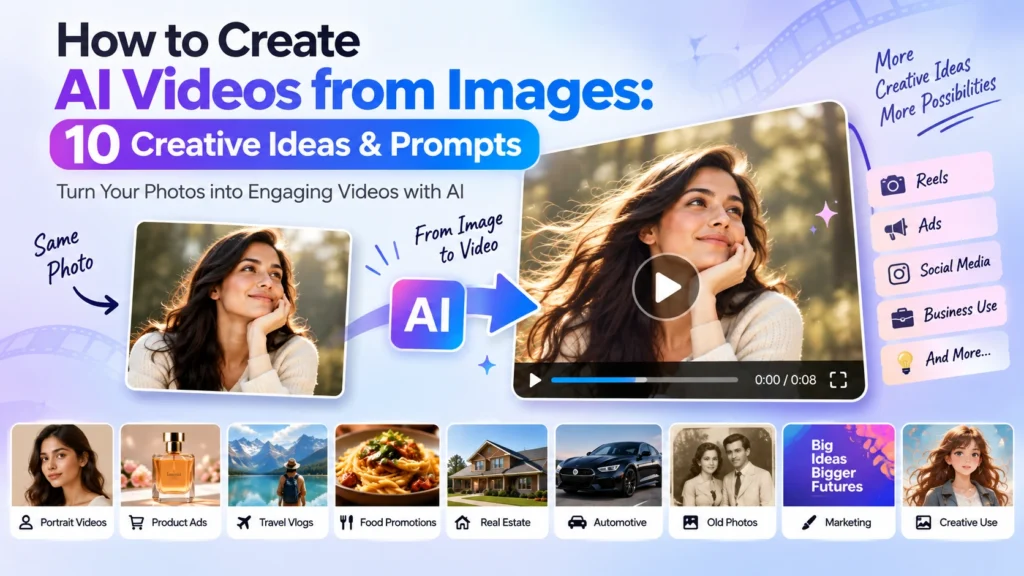
Turning a static image into a video no longer requires advanced video-editing skills or a full production setup. AI image to video tools can take a photograph, product image, illustration, or AI-generated image and add motion, camera movement, transitions, and-in some tools-audio and dialogue.
This makes image-to-video AI useful for more than just experimenting with photos. Creators can use it for Instagram Reels, YouTube Shorts, product videos, advertisements, storytelling, and social media content, while businesses can turn existing product and marketing images into new video creatives.
But with so many AI video generators available in 2026, choosing the right one can be confusing.
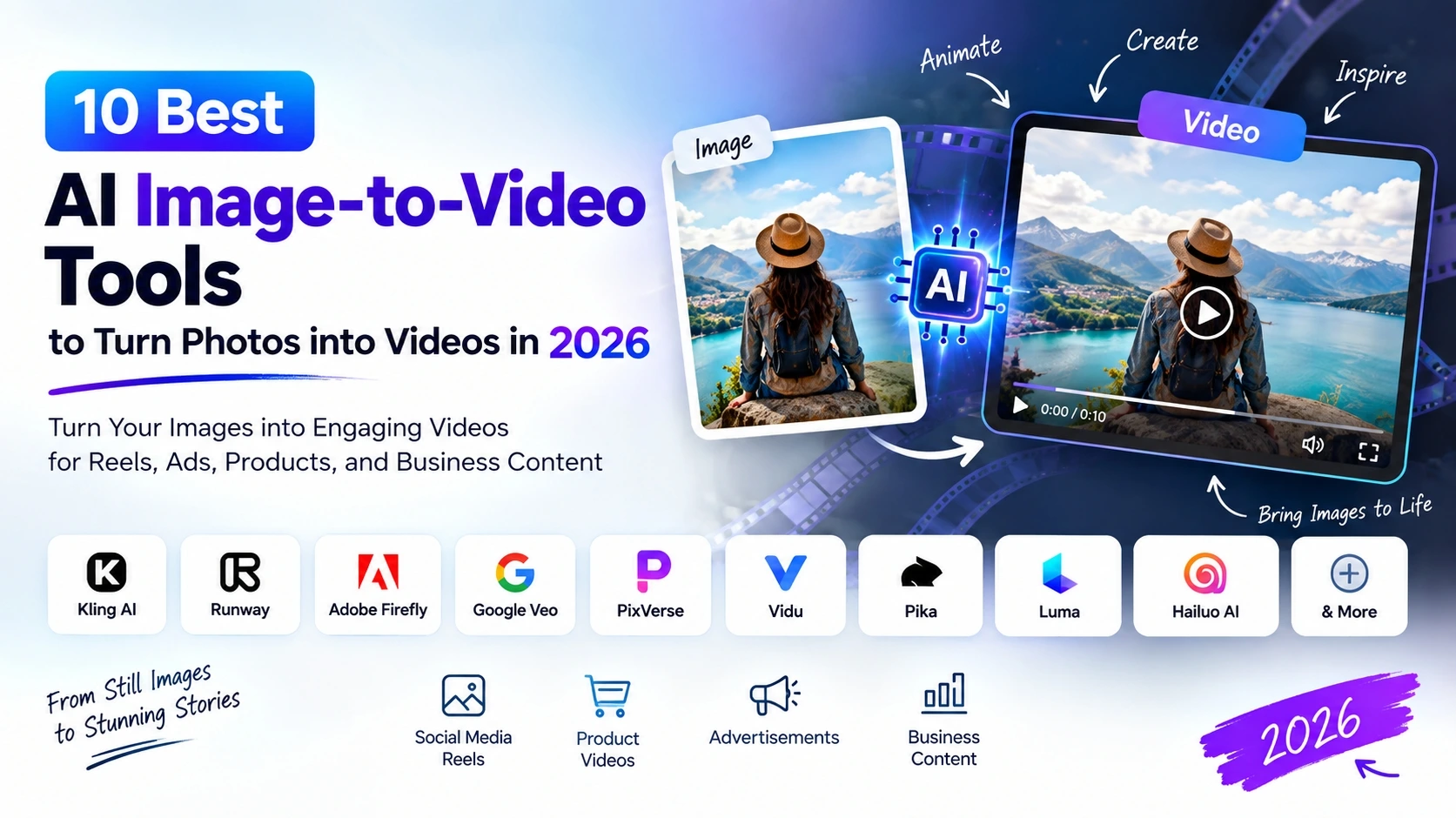
In this guide, we’ll look at 10 AI image-to-video tools worth considering in 2026, what each tool is good at, and which type of user or business can benefit from it.
What Is an AI Image to Video Tool?
An AI image-to-video tool converts a static image into a moving video using generative AI.
You typically upload an image and provide a prompt describing the movement you want.
For example:
“The camera slowly pushes toward the product while soft light moves across its surface.”
The AI generates a video based on the original image and your motion instructions.
Modern tools can also provide additional controls such as camera movement, first and last frames, character consistency, audio, lip-sync, and multi-shot generation.
10 Best AI Image to Video Tools in 2026
1. Google Flow
Best for: Cinematic AI videos, image-to-video and creative storytelling
Google Flow is an AI creative studio designed for creating cinematic clips, scenes, and stories using Google’s generative AI models, including Veo 3.1. It supports image-based workflows such as Frames to Video and Ingredients to Video, making it useful for turning images and references into more controlled video scenes.
Why use Google Flow for creating AI image to video?
- Image-to-video generation
- Frames-to-video workflow
- Reference images for characters, objects and scenes
- Camera controls
- Video extension
- Character consistency
- Native audio through Veo 3.1
- 1080p and 4K output options depending on plan/workflow
Good for: Filmmakers, creators, marketers, storytellers and businesses creating cinematic video content.
2. Kling AI
Best for: Realistic image animation, characters, product videos and social content
Kling AI is one of the most feature-rich options for turning images into videos. Its current Video 3.0 workflow supports image-to-video generation, character consistency, motion control, native audio and lip-sync. It can also use start and end frames when you need more control over a transition.
Why use Kling AI?
- Image-to-video generation
- Character consistency
- Camera and motion controls
- Native audio and lip-sync
- Up to 15-second generation in its current Video 3.0 workflow
- 1080p generation available on the free tier; higher-end 4K output is available with Pro according to Kling’s current documentation.
Good for: Creators, marketers, product brands, social media teams and businesses that want more control over generated motion.
3. Runway
Best for: Professional-looking creative videos and cinematic control
Runway is designed more toward controlled creative production than simple one-click animation.
Its current documentation points users toward Gen-4.5 for image-to-video, while Gen-4 documentation shows how an uploaded image becomes the starting frame and the text prompt focuses primarily on motion.
Why use Runway?
- Strong creative control
- Image-to-video workflows
- Cinematic camera movement
- Character and scene consistency features
- Useful for professional creative projects
Runway specifically recommends using a high-quality input image and focusing the prompt on the movement rather than repeatedly describing what is already visible in the image.
Good for: Designers, agencies, filmmakers, creative teams and advanced AI-video users.
4. Adobe Firefly
Best for: Businesses and marketers already using Adobe’s ecosystem
Adobe Firefly provides image-to-video generation directly inside its creative workflow. You can upload a photograph, illustration, 2D or 3D render, or concept art and use it as the starting point for a video.
Firefly also provides camera controls such as zoom, pan and tilt, which can help turn a static visual into a more intentional marketing clip.
Why use Firefly?
- Image-to-video generation
- Camera movement controls
- Product and marketing content
- Social media content
- Multiple AI video models available within the Firefly environment
- Editing and generation in one workflow
Adobe also states that videos generated with its own Firefly Video Model are designed to be safe for commercial use.
Good for: Businesses, marketing teams, designers and Adobe users.
5. Google Veo 3.1
Best for: High-quality cinematic video with audio
Google’s Veo 3.1 is designed for high-quality video generation and supports reference images for guiding a scene, character or object. It also includes audio generation.
This makes Veo particularly interesting when you want to move beyond simple image animation and create a more complete audiovisual scene.
Why use Veo 3.1?
- Reference-image control
- Character and object references
- Style reference images
- Cinematic video generation
- Native audio
Good for: Creative professionals, storytellers, advertisers and users who want more complete AI-generated scenes.
6. PixVerse
Best for: Social media videos, product creatives and fast experimentation
PixVerse provides dedicated image-to-video generation for photographs, product shots, portraits and campaign visuals. Its current V6 model adds improvements in camera work, character performance and multi-shot generation, along with native audio.
Its image-to-video workflow can also be used for creating different motion variations from the same source image.
Why use PixVerse?
- Image-to-video generation
- Camera movement
- Product and campaign visuals
- Social media content
- Multi-shot generation
- Native audio in supported workflows
Good for: Social media managers, marketers, creators and businesses testing multiple creative concepts.
7. Vidu AI
Best for: Fast image animation and reference-based video
Vidu lets users upload an image, describe the desired movement and generate a video. It also supports first-and-last-frame workflows when you want to define how a scene should transition.
Vidu’s current documentation also lists image-to-video models such as Vidu Q3 Pro and Q3 Turbo.
Why use Vidu?
- Image-to-video generation
- First and last frame control
- Motion controls
- Reference-to-video workflows
- Realistic and animated styles
- Multi-subject consistency
Good for: Creators, social media content, animation and businesses that need quick visual concepts.
8. Pika
Best for: Creative social media effects and short-form content
Pika is aimed strongly at creative, short-form AI video creation. It can be useful when your goal isn’t simply to make a photo move but to create something visually interesting for social media.
Why consider Pika?
- Creative video effects
- Image-based animation
- Short-form content creation
- Social media-friendly workflows
- Easy experimentation
Good for: Creators, influencers and users experimenting with AI-powered social content.
9. Luma
Best for: Creative video generation and cinematic experimentation
Luma is another option for creators looking for generative video workflows and more cinematic visual experimentation.
It can be considered when you want to explore different visual directions from existing images rather than relying on traditional editing software.
Good for: Creative professionals, storytellers, designers and experimental video creators.
10. Hailuo AI
Best for: Quick AI-generated creative clips
Hailuo AI is another popular option in the growing AI video-generation space. It can be useful for creators who want to experiment with image-based animation and short AI-generated scenes.
Good for: Social media creators, short-form video experiments and AI content creation.
How to Get Better Results from Image to Video AI
The tool is only part of the result. Your starting image and prompt matter too.
1. Start with a clear image
Use a high-quality image with a clear subject and good lighting. Vidu and PixVerse both recommend clean, high-quality source images for better results.
2. Describe the movement
Don’t spend the entire prompt describing what is already visible.
Instead, tell the AI what should happen.
Example:
“The camera slowly pushes toward the product while soft reflections move across its surface.”
Runway specifically recommends focusing image-to-video prompts on motion because the source image already provides much of the visual information.
3. Add camera movement
Try phrases such as:
- Slow camera push-in
- Smooth zoom out
- Camera tracking left
- Slow orbit around the subject
- Gentle pan
- Static camera
4. Don’t overcomplicate the first generation
Start with one main movement. If the result works, add more complexity in the next generation.
5. Generate multiple versions
AI video generation is not always perfect on the first attempt. Create a few variations and compare the movement, consistency and overall visual quality.
Final Thoughts
AI image-to-video technology has moved beyond simple photo animation. In 2026, tools such as Kling, Runway, Adobe Firefly, Veo, PixVerse and Vidu offer increasingly sophisticated ways to turn static visuals into videos with controlled motion, references, camera movement and, in some workflows, audio.
For casual creators, these tools can turn a single photograph into a Reel or short video. For businesses, the same technology can help transform product images, campaign creatives and marketing assets into additional video content.
The best approach is to start with a strong image, describe the desired motion clearly, test a few variations, and choose the tool that matches your specific workflow.
Want to Create an AI Video from Your Own Image?
Start with one of the image-to-video tools above, upload your image, describe the motion you want, and experiment with different camera movements and prompts.
And if you’re looking for ready-to-use prompts, check out our guide: “Turn Any Image to AI Video: 10 Creative Prompts to Try.”